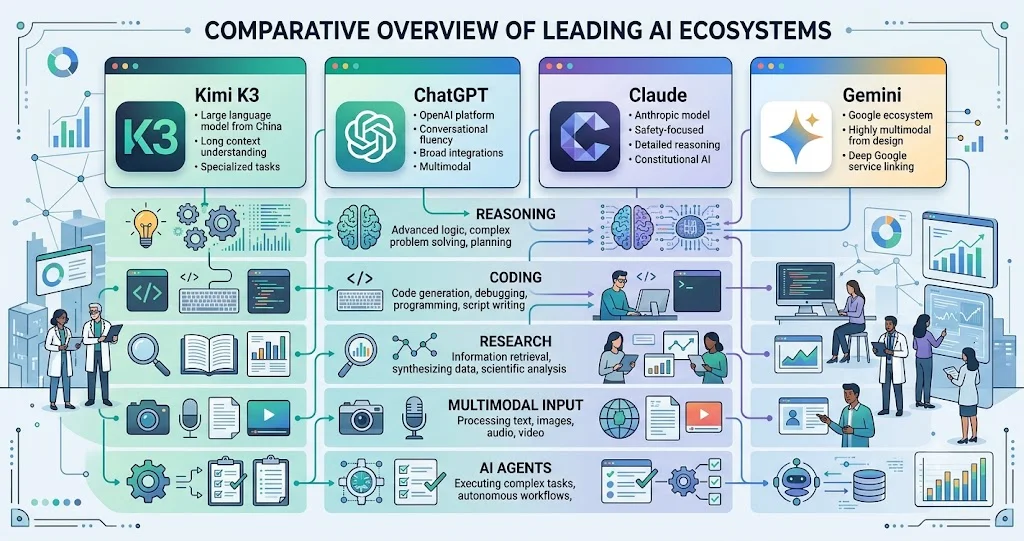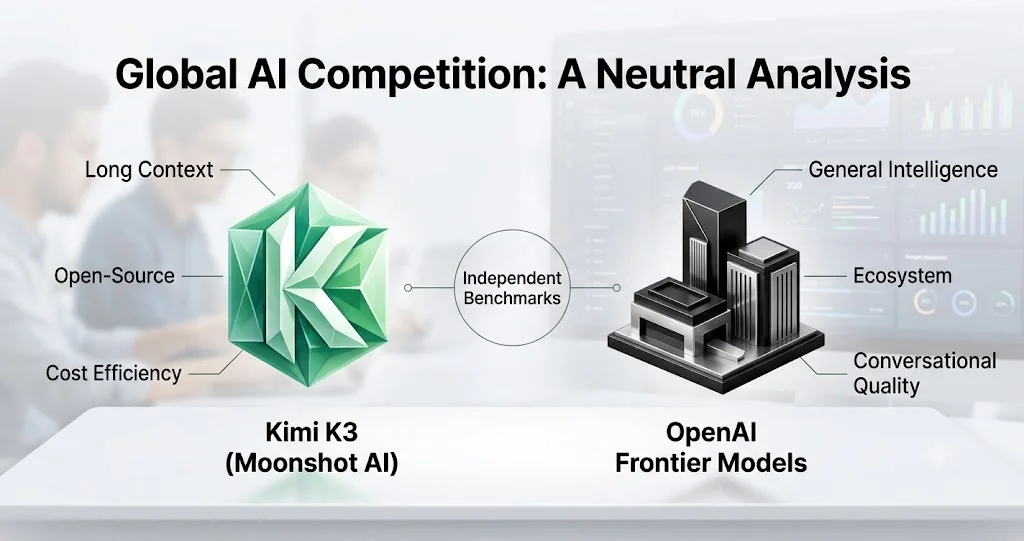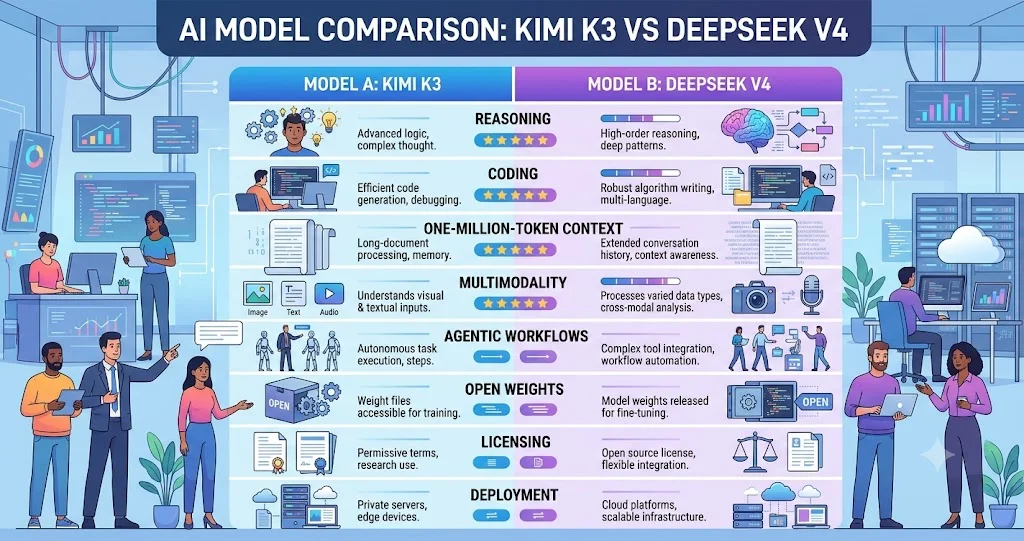


Kimi AI is a versatile artificial intelligence assistant that helps users process and analyze large volumes of text-based information. Whether you are a student, researcher, or professional, learning how to use Kimi AI effectively can enhance your productivity. This step-by-step guide walks you through the essential functions, from accessing the platform to mastering advanced features.
Getting Started with Kimi AI
To begin using Kimi AI, you need to access the official platform. The assistant is available through a web interface and mobile applications. After creating an account or logging in, you will be greeted by a clean chat interface where you can type your queries or upload files.
Accessing the Platform
Visit the Kimi AI website or download the app from your device's store. Registration typically requires an email address and password. Some regions may have specific access policies, so check availability in your location.
Understanding the Interface
The main screen consists of a text input box, a file upload button, and a conversation history panel. You can start typing your question or instruction directly. The interface also displays previous interactions, allowing you to maintain context across sessions.
Core Features and How to Use Them
Kimi AI offers several key functionalities that distinguish it from other assistants. Mastering these features will help you get the most out of the tool.
File Upload and Analysis
One of Kimi AI's standout capabilities is processing uploaded files. You can upload PDFs, Word documents, plain text files, and images that contain text. To upload a file, click the upload button, select your file, and wait for the system to process it. Once uploaded, you can ask questions about the content, request summaries, or extract specific information.
- Supported Formats: PDF, DOCX, TXT, JPG, PNG (with text).
- Process: Upload, wait for processing, then query.
- Best Practices: Ensure files are clear and well-structured for optimal results.
Web Search Integration
Kimi AI can search the web for real-time information. To use this feature, simply include a query that requires current data, or explicitly request a web search. The assistant will retrieve relevant results and synthesize them into a coherent response. This is particularly useful for fact-checking, news updates, and research.
Long-Context Processing
Kimi AI is designed to handle very long texts, such as entire books or lengthy reports. You can paste or upload large documents, and the assistant will maintain context throughout the conversation. This allows you to ask follow-up questions without losing track of the material.
Multilingual Support
The assistant supports multiple languages. You can interact with Kimi AI in your preferred language, and it will respond accordingly. This feature is beneficial for international users and those working with foreign-language documents.
Benefits and Limitations of Using Kimi AI
Understanding the advantages and constraints helps set realistic expectations.
Benefits
- Efficient processing of large documents saves time.
- Integrated web search provides up-to-date information.
- User-friendly interface accessible to non-technical users.
- Multilingual capabilities broaden usability.
- Context retention allows for in-depth analysis.
Limitations
- Accuracy depends on input quality; errors may occur.
- Internet connection required for web search features.
- Some specialized terminology may not be fully understood.
- Regional availability may be restricted.
Types of Tasks Suited for Kimi AI
Kimi AI is versatile but excels in certain areas. Understanding these can help you decide when to use it.
- Academic Research: Analyzing papers, summarizing articles, and cross-referencing sources.
- Business Intelligence: Reviewing reports, extracting key data, and preparing summaries.
- Content Creation: Brainstorming ideas, outlining articles, and editing drafts.
- Personal Productivity: Organizing notes, planning projects, and managing information.
Current Trends in AI Assistants
The AI landscape is evolving rapidly.
Expanding Context Windows
Developers are increasing the amount of text AI can process at once. Kimi AI's long-context capability is part of this trend, enabling more comprehensive analysis.
Multimodal Integration
AI assistants are incorporating image, audio, and video processing. While Kimi AI focuses on text and images with text, future updates may expand its modalities.
Personalization and Adaptation
Assistants are learning user preferences to deliver tailored responses. This trend enhances user experience and efficiency.
Ethical and Responsible AI
There is growing emphasis on transparency, bias reduction, and data privacy. Users should be aware of these considerations when using any AI tool.
Feature Comparison Table
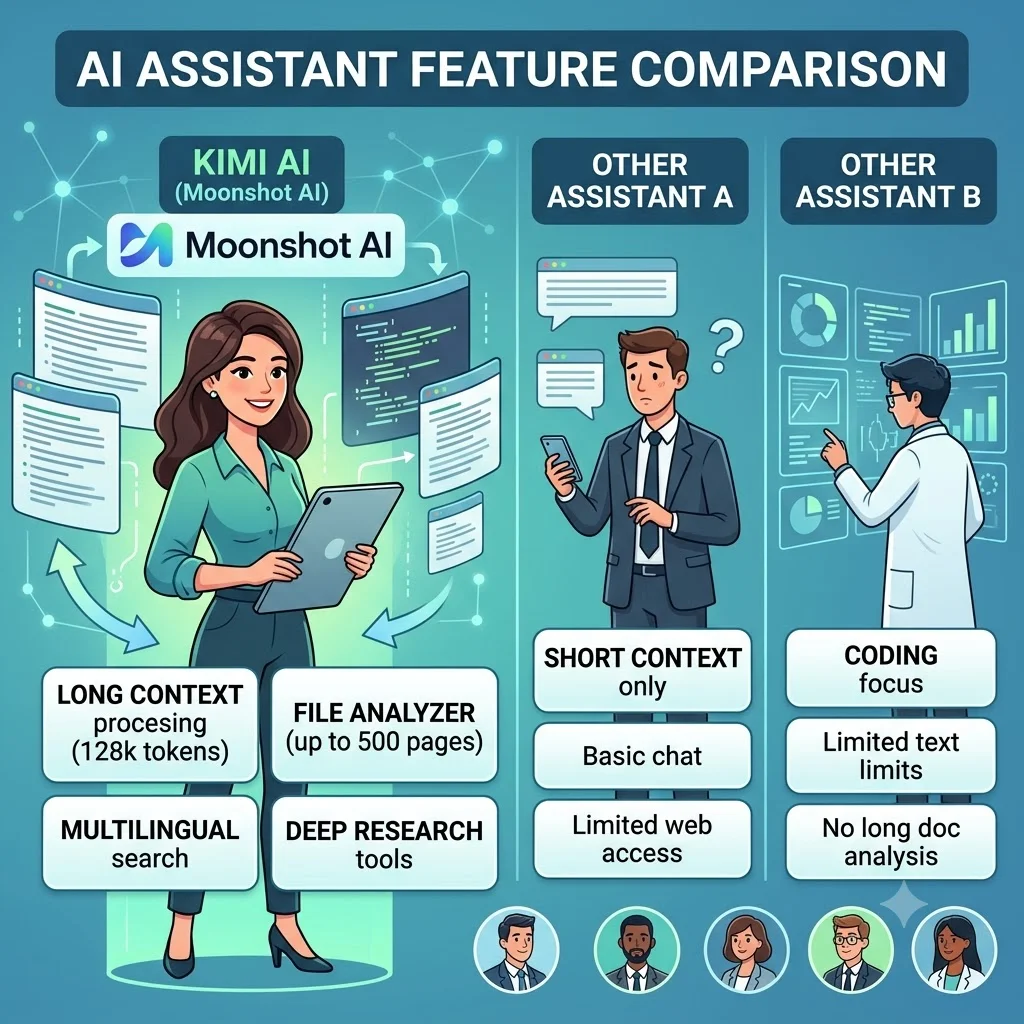
The following table compares Kimi AI's features with other common AI assistants, highlighting its unique strengths.
| Feature | Kimi AI | General AI Assistants |
|---|---|---|
| Long-Context Window | Extensive | Moderate |
| File Upload Formats | PDF, DOCX, TXT, Images | Limited |
| Web Search Integration | Integrated | Varies |
| Multilingual Support | Multiple Languages | Common Languages |
| Image Text Analysis | Yes (OCR) | Sometimes |
How Companies and Individuals Use Kimi AI
Various sectors are leveraging Kimi AI to improve efficiency. Educational institutions use it for research and curriculum development. Financial firms analyze regulatory documents. Legal professionals review case files. Content creators generate ideas and summaries. The assistant's versatility makes it applicable across domains.
Selection Checklist for Using Kimi AI
Before you start using Kimi AI, consider the following checklist to ensure it meets your needs:
- Identify the primary tasks you want to accomplish (e.g., document summarization, research).
- Check the file types you will frequently upload.
- Assess the need for real-time web search.
- Evaluate the language requirements.
- Consider the volume of text you typically handle.
- Review privacy and data handling policies.
- Ensure platform accessibility in your region.
Tips for Effective Use of Kimi AI
To get the best results, follow these practical tips:
- Be specific in your queries to receive precise answers.
- Upload well-formatted documents for better analysis.
- Use web search for current events and latest data.
- Break complex questions into smaller parts if needed.
- Verify critical information with independent sources.
- Experiment with different phrasings to improve responses.
- Keep the conversation context clear by referring to previous exchanges.
- Utilize the file upload feature for lengthy texts instead of pasting.
- Regularly update your knowledge of new features.
- Provide feedback to help improve the assistant.
Once you are familiar with the basics, you can explore more focused guides, such as our tutorial on how to use Kimi AI for research, to apply these skills to your academic or professional projects.
Frequently Asked Questions About Using Kimi AI
How do I create an account for Kimi AI?
Visit the official platform and sign up with an email address and password. Follow the verification steps if required.
Can I use Kimi AI on my smartphone?
Yes, there is a mobile app available for both iOS and Android devices, offering similar functionality to the web version.
What file formats does Kimi AI support?
Kimi AI supports PDF, DOCX, TXT, and image formats (JPG, PNG) that contain text. Ensure the text is legible for accurate processing.
Does Kimi AI require an internet connection?
For web search and real-time features, an internet connection is necessary. However, some basic processing may work offline depending on the platform.
How accurate are Kimi AI's responses?
Accuracy depends on the quality of input and the complexity of the query. While generally reliable, users should cross-check critical information.
Can I use Kimi AI for professional work?
Absolutely. Many professionals use Kimi AI for research, document review, and data analysis. Always verify outputs for accuracy and relevance.
Is Kimi AI available in multiple languages?
Yes, Kimi AI supports several languages. You can choose your preferred language in the settings or interact in your language naturally.
How do I upload a file to Kimi AI?
Click the upload icon in the interface, select your file from your device, and wait for the system to process it. Then you can ask questions about the content.
Can I use Kimi AI for brainstorming and creative tasks?
Yes, you can use it to generate ideas, outline projects, and assist with creative writing, though its primary strength is analytical.
What should I do if Kimi AI doesn't understand my query?
Try rephrasing your question, providing more context, or breaking it into simpler parts. If the issue persists, check for platform updates or support resources.
Conclusion
Kimi AI is a powerful tool for managing and analyzing text-based information. This guide has covered the essential steps to get started, from accessing the platform to utilizing advanced features like file uploads and web search. By following the tips and understanding the benefits and limitations, you can integrate Kimi AI into your workflow effectively. As with any technology, practice and experimentation will help you become more proficient. Stay informed about updates and new capabilities to continue leveraging Kimi AI for your personal and professional tasks.